
Theme notes without PARA
Theme notes collect records, tasks and reference notes around a topic. Plain theme mode uses a configurable theme folder rather than requiring Projects, Areas, Resources and Archives. Existing PARA workflows remain available.
Setup and creation
Choose Theme notes in workspace setup, or open Settings → Theme notes, enable theme notes and turn off Use PARA. Configure the theme folder. Changing modes keeps both sets of folder, naming and template settings; it does not move files or rewrite templates. Users who previously disabled PARA keep theme notes disabled after upgrading.
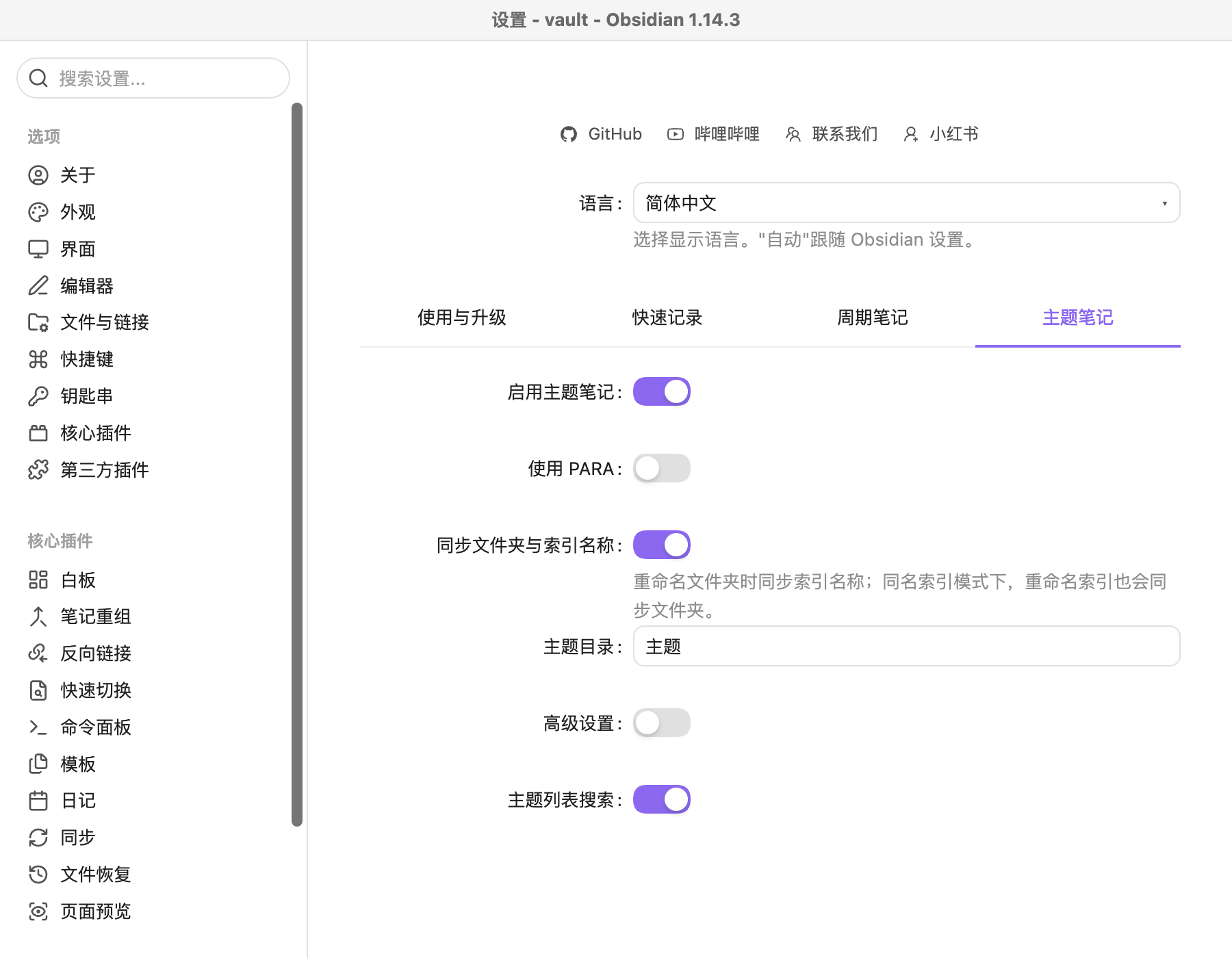
The screenshot shows the verified Simplified Chinese interface: the theme switch is enabled and the PARA switch is disabled. Advanced settings select README naming or a folder-name index and an optional custom template. Without advanced settings, the plugin uses README naming and Template.md in the theme root. A missing default template uses the built-in basic template; a missing explicitly configured custom template reports failure.
Open the LifeOS note creation panel and choose Theme notes. Enter a tag, folder and index, for example #learning/japanese, Japanese, and Japanese.README.md. README.md and prefixed *.README.md are supported; folder-name mode uses Japanese/Japanese.md. Nested theme folders are supported. Ordinary notes, templates and untagged indexes are excluded from the association picker.
Capture and query
Use Associate themes in quick capture, select a theme, enter text and save. Default themes also work in plain mode. Selecting a theme adds its first tag; a record matching any of its tags is associated. Existing multi-tag records are preserved. Shared tags can associate several themes; the picker warns about this and preserves tags needed by another selected theme.
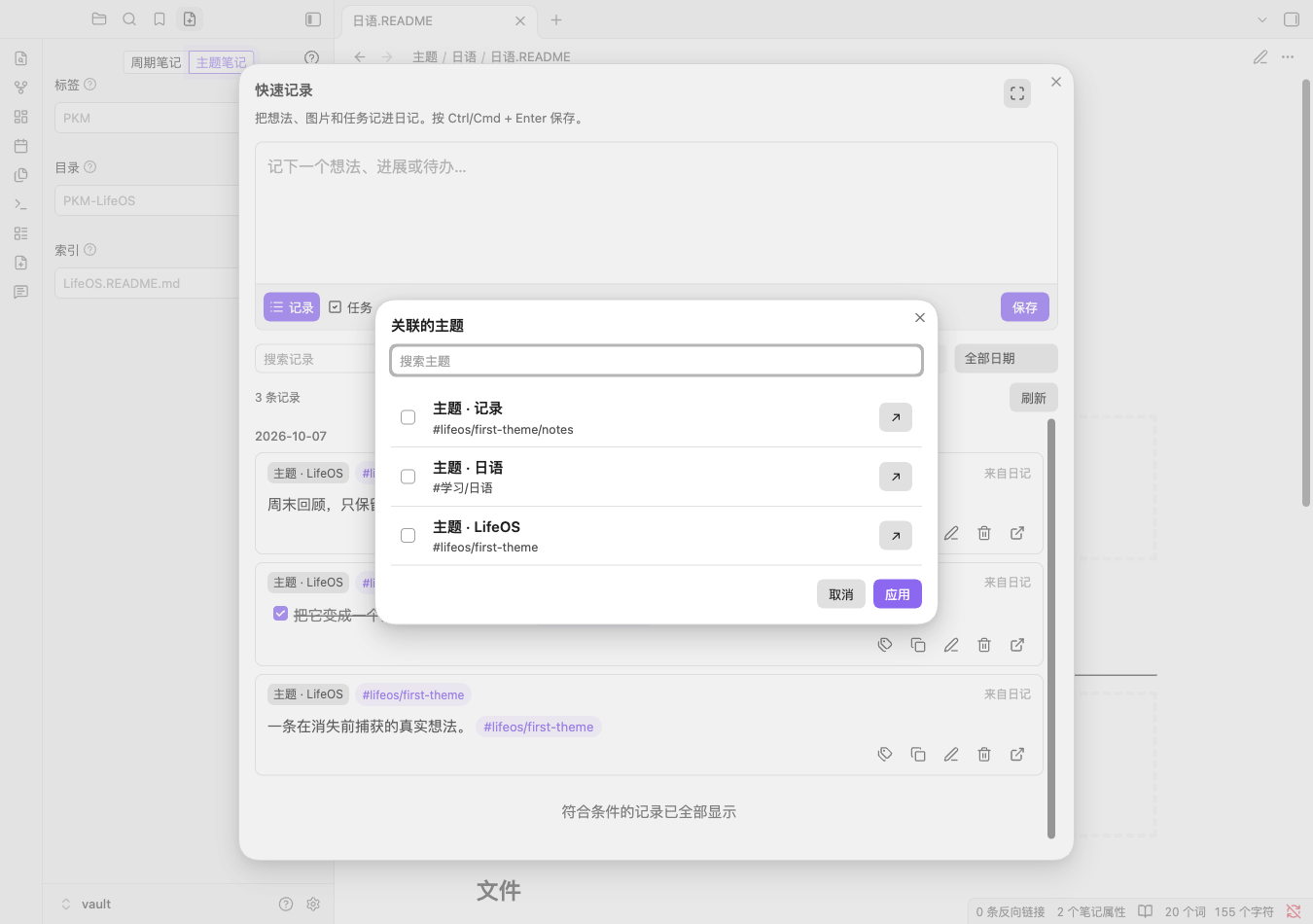
The verified Chinese picker uses the same selection workflow. The built-in template includes TaskListByTag, BulletListByTag, FileListByTag and ThemeListByTag blocks. ThemeListByFolder lists the configured theme directory. Lists support search and refresh after index changes. Checking a task writes back to the source note. Daily task and record queries use the same heading boundaries as quick capture, excluding habits and unrelated subsections. Template and theme-index notes are excluded from task and record results.
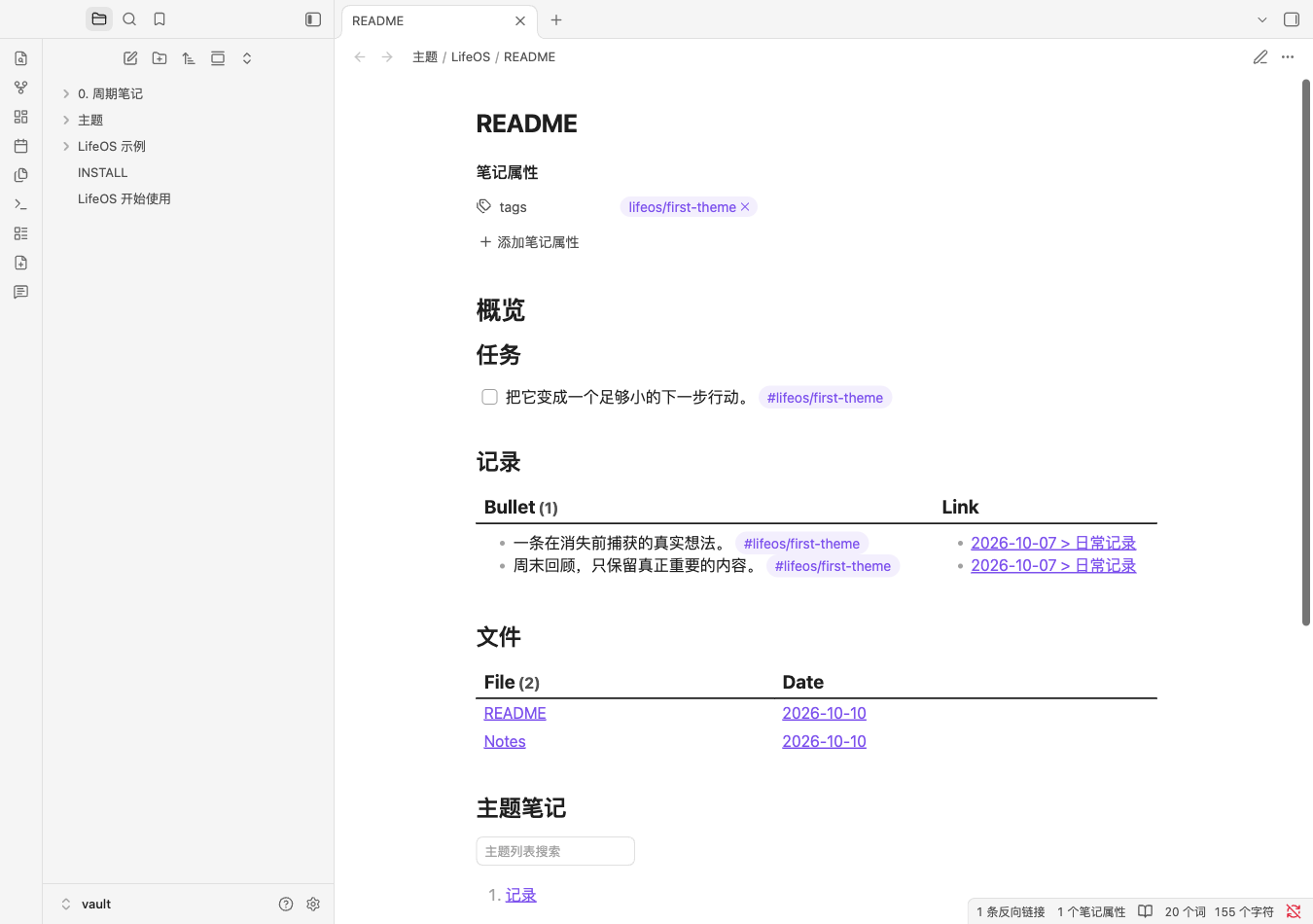
Quick capture, theme creation and native theme lists work without Dataview. Task, record and file query blocks still require Dataview. The screenshots use synthetic example content in an isolated Obsidian vault.
Snapshots, renames and examples
The plain-theme daily template uses {{snapshot:Theme}}. LifeOS replaces it with the theme links present when the daily note is created. Older notes are not rewritten. Templater users may use <% LifeOS.Theme.snapshot() %>; existing PARA snapshot helpers remain available.
Optional name synchronization updates a matching folder-name index or Folder.README.md after a folder rename; README.md stays unchanged. In folder-name mode, renaming the index also renames its folder. Collisions are reported without overwriting the destination; the user's initial rename is retained.
Each language in the open-source example repository includes LifeOS Vault, LifeOS Blank Vault, LifeOS Theme Vault and LifeOS Theme Blank Vault. The theme example contains linked daily records, tasks, reference notes and a tagged habit entry to demonstrate filtering. Blank vaults contain only guides, templates and settings. Install the updated open-source LifeOS plugin and Dataview separately; no plugin binaries are bundled. Use Examples 1.20.0 with LifeOS 1.29.0 or newer.