
Sync Pro for Obsidian

Sync Pro is the third independent plugin featured on LifeOS, alongside LifeOS Pro and DeepAsk. It brings Aino’s shared sync engine to Obsidian on desktop, Android and iOS, for Markdown notes and attachments. LifeOS Pro is not required.
This is a public beta. Back up your vault before first use. Do not use another plugin’s package or activation code.
Try free for 7 days
Start your 7-day trial: enter your email, open the verification email and confirm to receive an activation code. The trial starts on confirmation. One trial per email, shared across 5 devices; repeat requests do not extend it. No payment or auto-renewal. After expiry, sync stops while local notes remain readable and editable.
Licensing and costs
A one-time purchase includes lifetime updates and activation on 5 devices. Desktop, Android and iOS share the same five-device allowance; no separate purchase is needed for each platform.
A separate paid Sync Pro license is required. LifeOS Pro, DeepAsk and Aino App entitlements do not automatically activate this plugin. Pricing is CNY 99 in China and US$19.90 in the US. During public beta, activation codes are manually issued after order verification.
Cloud storage and traffic are billed separately by your WebDAV or S3 provider. Obsidian’s official Sync subscription is not included. Activation and periodic license checks require internet access. Successful checks are cached in memory for up to 15 minutes and checked again after startup. An expired or rejected license prevents new sync operations; local notes remain readable and editable.
Buy the public beta: Gumroad · Creem. Download: Sync Pro 0.1.0 public beta; the same ZIP is also included with your marketplace purchase. Email your receipt and purchase email to support for activation. China: Taobao — CNY 99.
Install and activate
- Use Obsidian 1.11.4 or later. Back up your vault and choose the device with the complete copy as your first device.
- Download and extract the public-beta ZIP, then place
main.js,manifest.jsonandstyles.cssin.obsidian/plugins/aino-sync/, then enable Sync Pro under Community plugins. Install it separately on mobile. - Open Settings → Sync Pro → Sync Pro license, enter your purchase email and activation code, and click Activate. Activate each device separately.
- Check license verifies access. Forget license removes local credentials only; it does not release the server device slot. Contact support for device-limit issues.
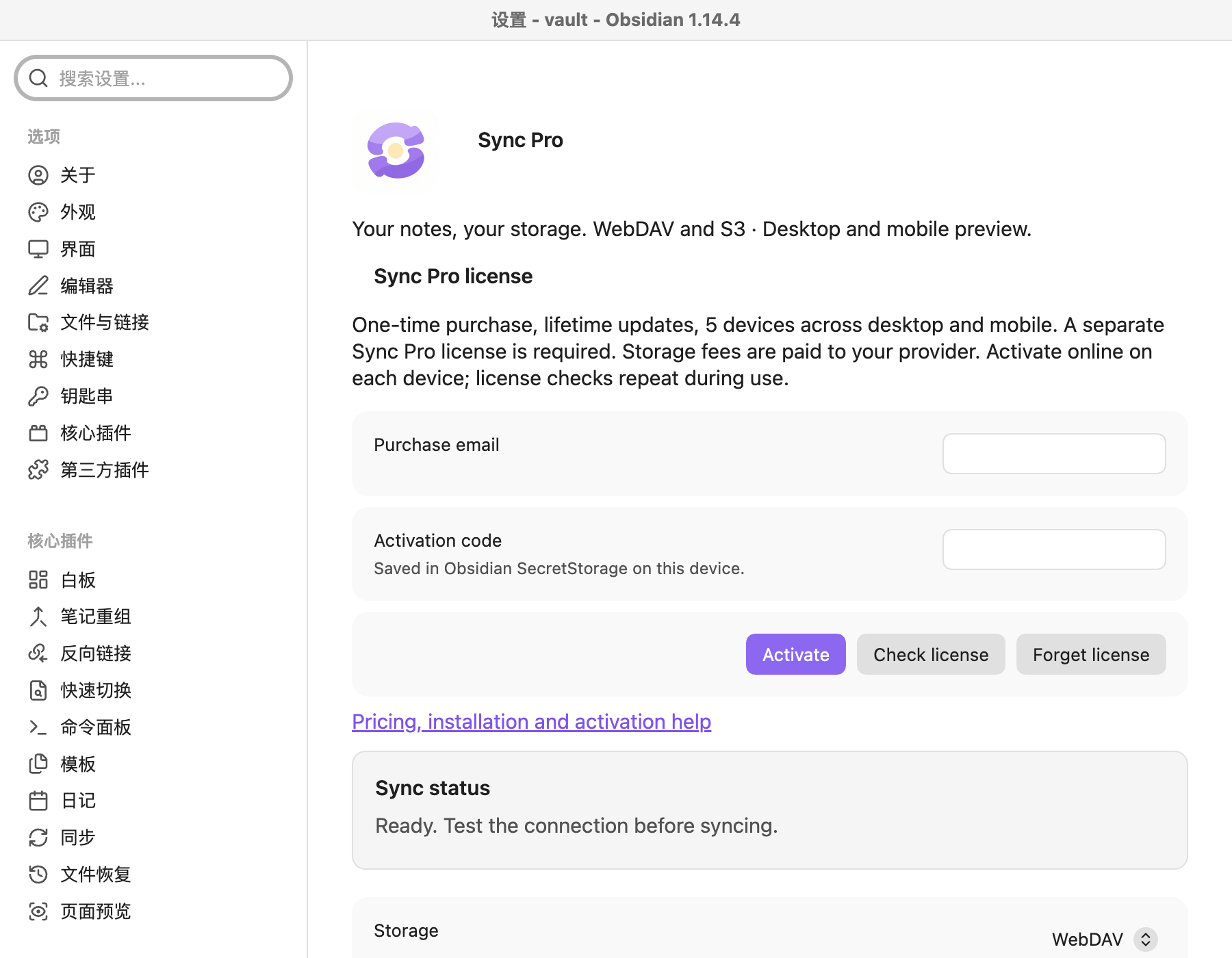
Your purchase email and activation code verify the plugin license. Your storage username and secret connect to your own storage; these are separate credentials.
Connect Alibaba Cloud OSS
Use a dedicated Bucket and a key with list, read, write and delete permissions for the selected prefix. Start with test data.
Click Save connection, then Test connection. The test performs temporary read/write probes in your storage. Click Sync now and wait for completion. Secrets are stored locally in Obsidian SecretStorage; leave the password blank when saving other settings to retain it.
For WebDAV, select WebDAV and enter the provider’s final endpoint, username, password and a dedicated remote folder. S3 fields do not apply. Other S3-compatible services may require different regions and URL styles; current real-provider validation focuses on Alibaba OSS.
Add another device
Complete the first sync before creating an empty vault on the second device. Install and activate the plugin, enter the same storage, Bucket and prefix, then sync and inspect the downloaded files before editing. Use different prefixes for different vaults.
To share with Aino App, configure the same service and prefix in Aino. The app’s own licensing requirements still apply. Selected Aino Desktop and Android interoperability scenarios have been verified; Aino iOS mixed-client validation remains pending.
Enable Automatic sync and save on each device to sync after changes and check the remote once a minute while Obsidian is in the foreground. Backgrounding mobile requests a stop; transfers are not guaranteed while the system suspends the app. Stop retains completed transfers and waits for the current mobile native request to finish.
Conflicts, deletion and limits
- Notes and attachments sync; Obsidian configuration, themes, workspace state, credentials and local sync metadata do not.
.aino-sync-ignoreis supported. - Use one sync tool per vault. Avoid concurrently syncing the same files with Obsidian Sync, iCloud or another plugin.
- Deletions propagate. Close open notes before accepting remote deletions. Review both the original and the preserved conflict copy before editing.
- Recreating a deleted path can currently produce a persistent conflict. Keep the content under a new filename or contact support; do not discard conflict copies blindly.
- Per-file transfer limits: 64 MiB on desktop, 16 MiB on mobile. Exclude larger attachments with ignore rules.
- Mobile recovery copies live under
plugins/aino-sync/recovery/in the Obsidian configuration directory and are not automatically cleaned. Save needed recovery data before uninstalling. - End-to-end encryption is not provided. Your configured storage provider’s privacy and billing terms apply.